
Stop Leaving Your Azure Storage Open to the Public!
Summary
The video demonstrates how to enable firewall support for an Azure Databricks workspace storage account, preventing public network access. It walks through creating private endpoints, an access connector, and using a PowerShell command to configure the firewall.
Summary generated by brickster.ai from the video transcript.
Topics
More from Databricks Skill Builder
 Tutorials
Deploy an Azure Databricks Serverless Workspace in Under 2 Minutes | Step-by-Step Tutorial
Deploy an Azure Databricks serverless workspace through the Azure portal by selecting your subscription and resource group, configuring the workspace name, choosing your region and premium pricing tier, then reviewing and creating the deployment. The entire process takes approximately 2 minutes to complete.
 Tutorials
Databricks SSH Tunnel: Connect Coding Agents and IDEs to your Workspace
Databricks' SSH tunnel feature lets you connect local IDEs and coding agents directly to your workspace, enabling you to edit and run code on Databricks compute while keeping files automatically synced. The connection supports multiple IDEs through either CLI commands or an extension, with options for serverless compute, GPU acceleration, and base environment management to avoid reinstalling dependencies.
 Tutorials
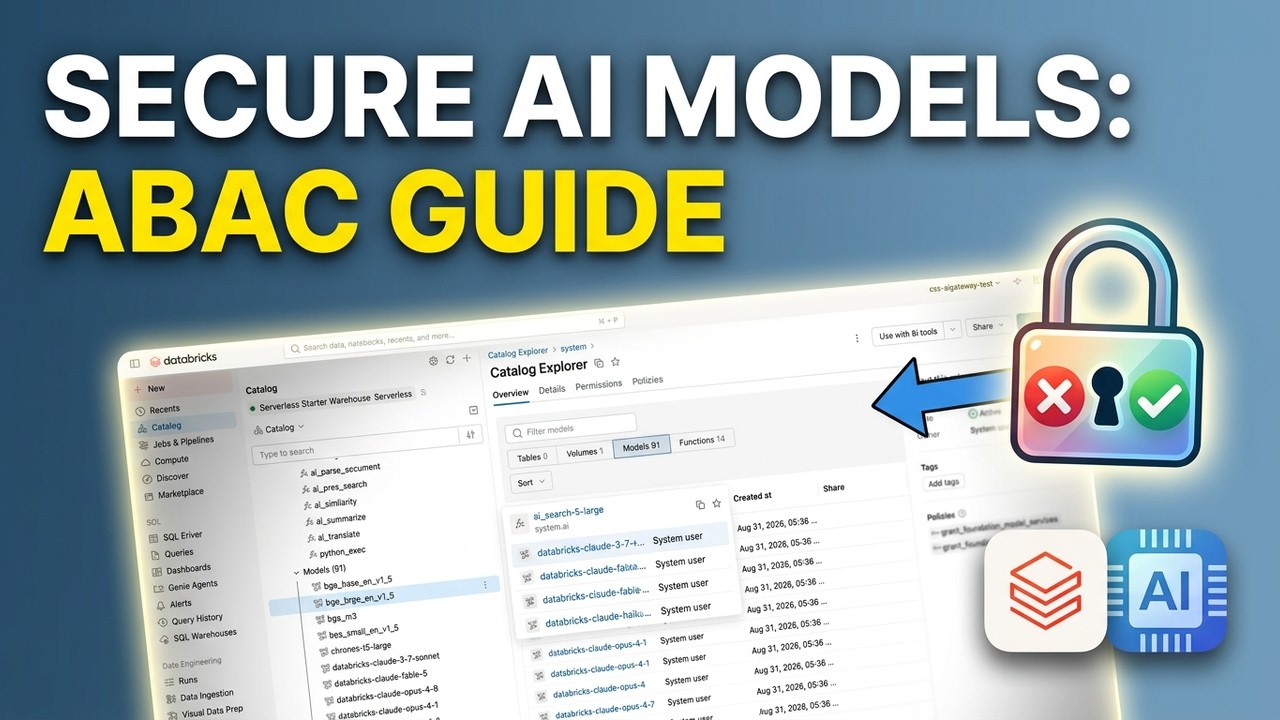
Govern Models and Model Services Using ABAC Grant Policies
Databricks models and model services can be opted out of using catalog tags combined with attribute-based access control grant policies. Executing this setup requires applying tags to specific models, writing programmatic policies with exclusion statements, and revoking schema-level permissions.
 News
NewsDatabricks Unity AI Gateway: Manage AI Strategy!
The Databricks Unity AI Gateway provides administrators with a centralized platform to monitor, manage, and govern a company's artificial intelligence strategy. Administrators can use this interface within the Databricks workspace to oversee and enforce governance policies for various proprietary models, open-source models, and coding agents.
 News
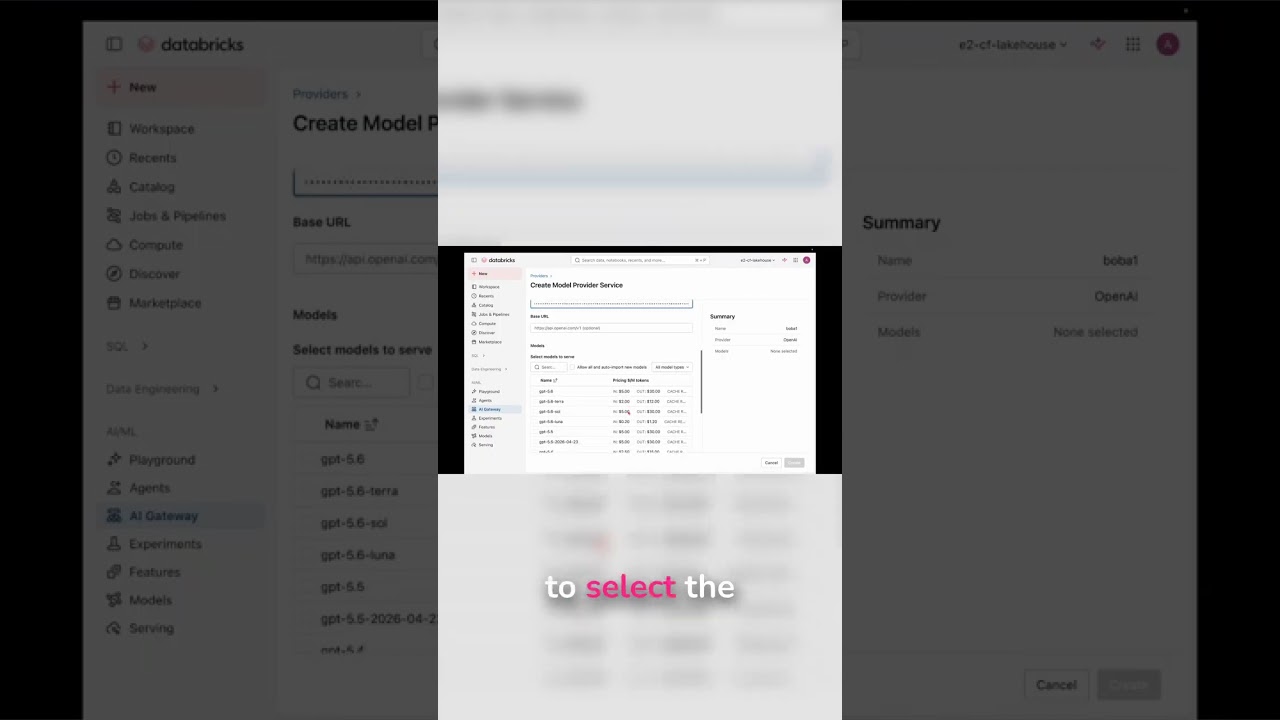
NewsIntegrating External AI Models with Databricks
The video demonstrates adding an external OpenAI endpoint to Databricks by entering a provider name, API key, and selecting a model version. Once created, the endpoint is ready for use within Databricks.
 News
NewsMonitor AI Model Usage & Spending on Databricks
Databricks AI Gateway enables admins to select which MCP server tools are exposed to agents and view their governance configuration. Usage tracking is automatically enabled to provide centralized visibility into model token consumption and spending metrics.